Professional Windows & Mac OS Installation, Upgrade & Repair
We specialize in clean installations, upgrades, and recovery of all major operating systems. From Windows 12, 11, 10, 7, and XP to every macOS version including Sequoia, Sonoma, Ventura, Monterey, Big Sur, Catalina, Mojave, and more. Onsite, remote, and free pickup/delivery available.
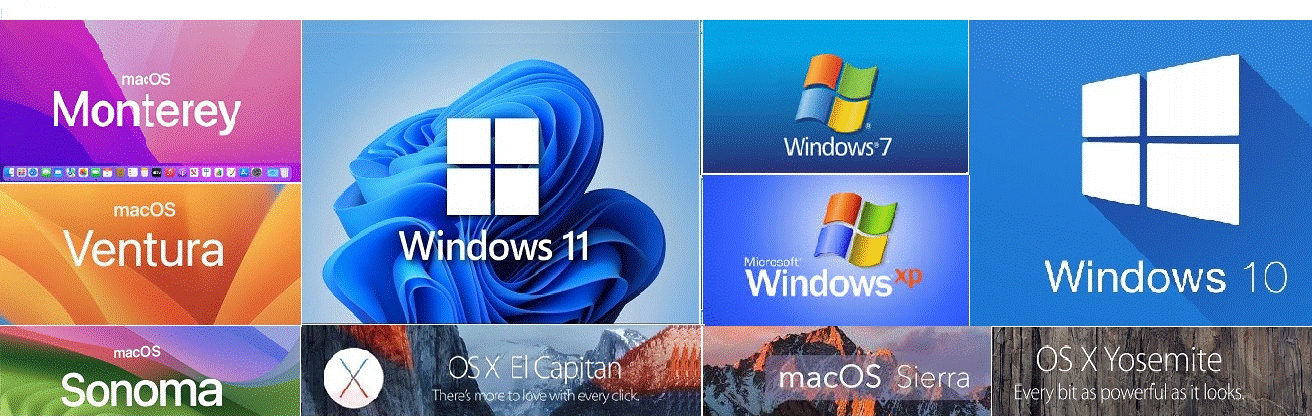
Operating Systems We Install & Repair
We support all current and legacy versions of Windows and macOS. Whether you need a fresh install, an upgrade, or a repair of a corrupted system, we've got you covered.
- Windows 12
- Windows 11
- Windows 10
- Windows 8 / 8.1
- Windows 7
- Windows Vista
- Windows XP
- Windows 98
- Sequoia 15.0.1
- Sonoma 14.0.1
- Ventura 13.0.1
- Monterey 12.6.1
- Big Sur 11.6.1
- Catalina 10.15.7
- Mojave 10.14.6
- High Sierra 10.13.6
- Sierra 10.12.6
- El Capitan 10.11.6
- Yosemite 10.10.5
- Mavericks 10.9.5
- Lion 10.7.5
- Snow Leopard 10.6.8
- Leopard 10.5.8
- Tiger 10.4

Professional Operating System Installations
We perform complete operating system installations and upgrades, as well as standard software package installations on desktop computers, laptops, and servers. We also can transfer data from your old computer system to a new operating system installation once completed, and depending on the situation, we may be able to transfer certain applications without needing the original installation media.
We recommend clean operating system installs on most equipment to avoid migrating any underlying problems from the original installation. Our technicians ensure all drivers, updates, and settings are properly configured for optimal performance.
Repair Microsoft Windows OS Without Data Loss
Repairing a Windows installation without losing data is possible through several methods. One of the most effective approaches is using the Startup Repair tool, which can fix common issues preventing Windows from booting properly. To access this, restart your PC and press the F8 key (or the equivalent) during startup to enter the Advanced Boot Options. From there, choose Repair Your Computer and then select Startup Repair.
Another method is to perform an in-place upgrade (also known as a repair install), which involves using the Windows Installation Media (USB or DVD). This process installs a fresh copy of Windows over your existing installation while preserving your files, settings, and installed programs. To do this, run the setup from the installation media, choose Upgrade, and follow the on-screen instructions. This method is ideal for fixing system files or resolving stability issues without the need to format or reinstall Windows, ensuring no data loss.
Always make sure to back up important data before proceeding with any repair process, just as a precaution.
Upgrade Your Old Windows to a Newer Version
Upgrading an old computer to Windows 11 or 12 involves several key steps to ensure compatibility and a smooth transition. First, verify if your system meets the minimum requirements, such as a compatible 64-bit processor, 4GB of RAM, 64GB of storage, and TPM 2.0 support. You can use the PC Health Check tool from Microsoft to check compatibility. If your PC meets the requirements, the next step is to back up your important files.
You can then proceed with the upgrade by either using Windows Update (if available) or downloading the Windows Installation Assistant from Microsoft’s website. If you prefer a clean installation, you can create a bootable USB drive with the Windows Media Creation Tool and perform a fresh installation. During the upgrade, the system will retain your files and apps (unless you choose a clean install), but it's always wise to back up your data beforehand.
How to Get a Newer Version of Windows
To get a newer version of Windows, such as Windows 11 or 12, you have several options. First, check if your device is eligible for an upgrade by reviewing the system requirements. If your PC is eligible, the easiest way is through Windows Update – go to Settings > Update & Security > Windows Update and click Check for updates. If an upgrade is available, it will be listed.
If you don’t see the update, you can use the Windows Installation Assistant from Microsoft’s official website to manually initiate the upgrade. Alternatively, use the Media Creation Tool to create a bootable USB drive and perform a clean installation of the latest Windows version. In some cases, you might need to purchase a new license. Always back up your data before upgrading.
Install Windows 11 on Older or Low-Spec Computers
At Complete Computer Repair, we understand that technology evolves rapidly, and sometimes older computers can feel left behind. Our skilled technicians can help you get the most out of your existing hardware, even if your computer has lower specifications or is not officially compatible with the latest versions of Windows.
We specialize in upgrading and installing Windows 11 (and earlier versions like Windows 10) on computers that might not meet the typical system requirements. Even if your computer only has 2GB of RAM or a small 30GB hard drive, we can optimize the system for better performance and efficiency, ensuring that you can run a modern operating system without sacrificing speed or functionality.
Our process begins by assessing the hardware, tweaking settings, and sometimes performing lightweight modifications to allow even older computers to run Windows 11 or 12. By using customized configurations, we can bypass certain hardware limitations, optimize performance, and install a more modern operating system that benefits from increased security and improved features. This approach ensures that older PCs can continue to be used for daily tasks, web browsing, and office work, without the need to purchase a brand-new device.
For both home and business owners, this service is a cost-effective way to extend the lifespan of your old machines. Whether it’s for Windows upgrades, system optimization, or general repairs, we ensure that your outdated hardware is optimized to run as efficiently as possible.
Why Choose Complete Computer Repair for OS Services?
All Versions Supported
From Windows 12 to XP and macOS Sequoia to Tiger – we handle them all.
Data Safe
We prioritize data preservation. In-place upgrades and repairs keep your files intact.
Free Pickup/Delivery
We pick up and return your device for free – especially for complex installs.
Fast Turnaround
Most installations are completed within 24 hours. Onsite and remote options available.
Get Your OS Installed or Repaired Today
Whether you need a fresh Windows installation, a macOS upgrade, or a repair that saves your data, our certified technicians are ready to help. We serve homes and businesses across South Florida with onsite, remote, and pickup/delivery services. Call us now for a free consultation and estimate.